
Nobody sets out to collect barcode screenshots
A folder of barcode screenshots is never a plan; it accumulates. A wallet app closes and the people who thought ahead are left holding pictures. A phone gets replaced. A year of tickets arrives as email attachments.
Closures are the sharpest version: a deadline, and no export button. One well-known wallet app shut down and deleted what it held, which is why so many camera rolls carry a row of loyalty barcodes: Where Stocard went
However the pile got there, it stays there, and not because the total work is large. Adding cards one by one is two jobs braided together: read a value off a picture, type a name, read the next one.
Every handover costs something. Measured in a laboratory on far simpler tasks, one swap runs from a couple of tenths of a second to about a second, and expecting it does not make it free. A mixed run stays slower throughout.
Interface guidance says the same about step-by-step wizards: they suit an unfamiliar job done rarely, and turn annoying and overly controlling when the same person runs them repeatedly.
Get the photos into one place before you open the app
A batch is only as good as the selection handed to it, and that is easier to assemble in your photo library than in a hurry inside a picker. Gather the pictures you want where you can see them together, and drop the near-misses now.
Both iOS and Android let you hand an app only the pictures you choose rather than the whole library, which suits this job. ScanKeeper asks for the camera and the photo library and nothing else: Wallet without an account
Fifty is the ceiling for one batch, which is a useful number to plan around. If the pile is bigger, split it by kind rather than by date, so the naming stays on one sort of card at a time.
Or skip the gathering. A picture can go to ScanKeeper from the app it is already sitting in, through the same share sheet you would use to send it to anyone else, and it never has to be saved to your library first.
What a batch finds, and what it hands back
With the photos chosen, the app works through them looking for a supported code. Recognition runs on the device, so nothing waits on a connection.
The pictures that come back empty
Some will, and the reasons are ordinary. The shot is of a shelf label rather than the card. The code is clipped at the edge of a crop. The picture is of another screen, taken at an angle. Or the card works by tapping and never carried a code.
A photo the app cannot read is not thrown away. It reaches the review as a form saying the image couldn't be recognized, with fields you can fill in by hand.
More than one code in the frame
A coupon sheet, a card photographed beside its terms, a ticket printed next to a venue map. ScanKeeper does not choose between them for you: every code it finds opens a step of its own, with that code lit and the rest of the picture dimmed, so you always know which number you are naming.
Which means the counter counts codes, not pictures. Twelve photos can arrive as fifteen steps, and the three extra ones are not a mistake. They are what a single frame happened to be holding.
One consequence is worth knowing before it surprises you. A card that prints the same number twice, once as a square QR and once as a stripe of bars, comes back as two cards, because the format counts as part of what was found. Keep the one your till reads and delete the other.
A ticket is usually a PDF, not a photo
Plenty of the codes worth keeping never touch the camera roll. An e-ticket, a boarding pass, a coupon at the bottom of a newsletter: they arrive as a PDF, and the code inside one is an ordinary picture sitting on the page.
Select PDF, on the same screen as the photos, takes the file whole. Its pages are drawn as pictures on the device — up to 2000 pixels along the long side, which is what a reader needs to see the bars — and then join the same queue as everything else. Twenty pages is the limit for one file: generous for a ticket, and deliberately short of a catalogue.
A file that will not open, because the download broke or because it is locked, is reported as unreadable and stops there. There is no password box, and nothing is guessed at.

None of it waits on a connection, because the reading happens on the phone. ScanKeeper for iOS and Android is free to install, and a single photo is a fair enough test of whether the rest is worth your evening.
Naming is the work, and it has a shelf life
Fifty values with no names is not a collection, it is a list of numbers. What the batch was worth is decided by what you type in the second half.
The photo is a cue, not the memory
Memory for where something came from — which app, which shop, which afternoon — holds up over minutes and falls away sharply after a day. So name them in the same sitting rather than next week. There is no thirty-second rule.
The picture is a cue, not the record, and cues rank: where you were and what was happening beat a date stamp by a distance. A cue can also produce a confident guess instead of a memory, so read the printed number rather than assume it.
Automatic names would not save you
Automatic names do not rescue this. Fifty cards called Import 1 through Import 50 are fifty things that look alike, which is the problem you started with. Keeping each picture on screen while you name it is what the review does instead.
When one at a time is still the right call
Three photos are not a batch. Opening the scanner three times is less work than assembling a selection and reviewing it, and the card comes out the same either way.
If the card is in your hand, scan the card. A photograph of one is a copy of a copy, and the camera has better light and a straighter angle than the screenshot. The picture route earns its place when the original is gone.
And when you want one code now, do that one on its own: Scan a QR code from a saved image
A batch leaves you fifty named cards. Colors, images and folders are a second pass whichever way they arrived: Barcode organizer guide
How bulk import handles a batch, screen by screen
- 01
Start from Actions, not the scanner
Bulk import sits on the Actions screen, next to the other collection tools. The camera takes one code at a time; this is the other door.
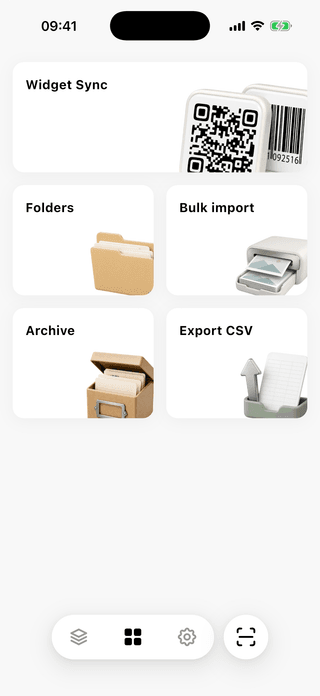
The batch route starts away from the camera. - 02
Hand over photos, or a PDF
The sheet takes up to 50 pictures of your barcodes and QR codes, and it takes a PDF as well, for the ticket or the coupon that never was a photo.
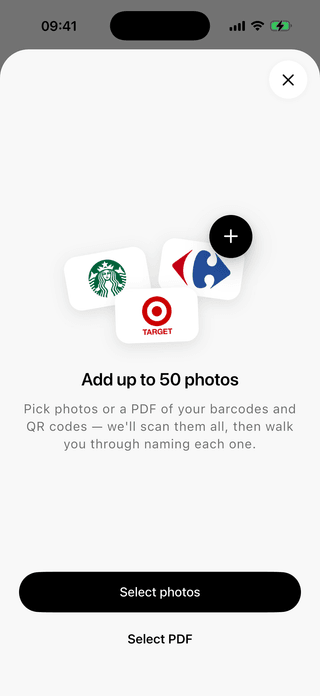
Two buttons, one queue behind them. - 03
The batch is read on the device
A counter walks through the selection while the app looks for a supported code in each picture. Nothing leaves the phone to do it.
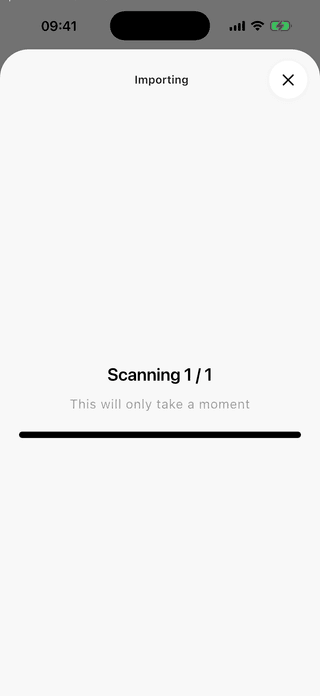
Scanning counts up as it goes. - 04
One picture can be more than one card
Every code found gets a step of its own, and the shot stays on screen for each with that code lit and the rest dimmed. Three on a coupon sheet is three steps, not a choice between them.
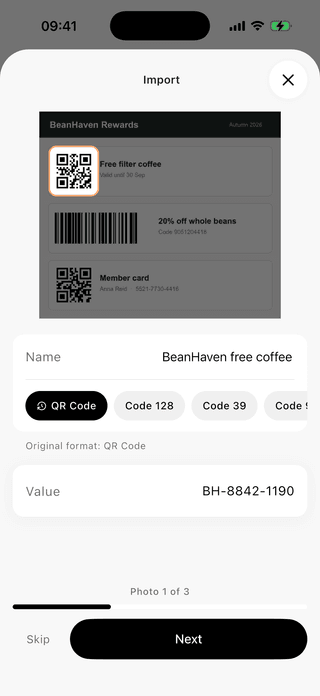
The counter is codes, not photos. - 05
A photo the app could not read
Some pictures come back with nothing in them. The screen says so and offers Name, Value and a type picker, so you can type the number in or skip it.
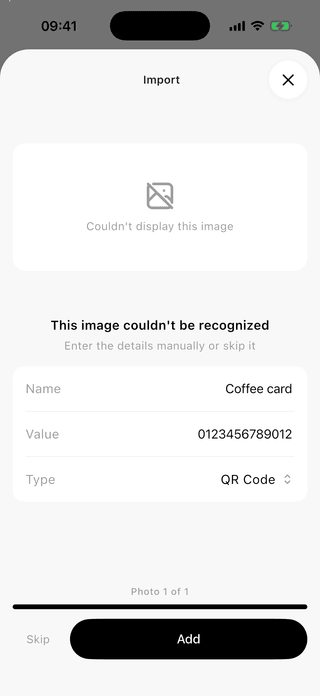
An unreadable picture is a form, not a dead end. - 06
The count at the end
The batch closes by telling you how many cards were added. If that is fewer than you chose, the difference is what you skipped.
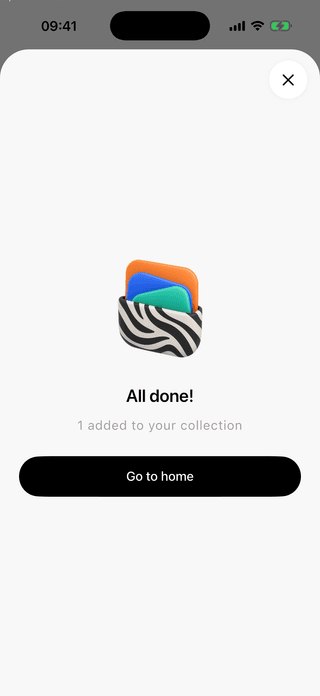
The last screen says how many made it.



What only matters when there are fifty of them
One decision per photo
The selection is made once and read once. What is left is Skip or Add, fifty times over, with no screen to reopen in between.
The picture stays on screen
Each photo is in front of you while you name it, so the thing that reminds you what the card is has not gone anywhere.
Fifty photos, no upload
Every image in the batch is read on the device. A large batch is not a large upload, because there is no upload.
What to know before you start
How many barcode photos can I import at once?
ScanKeeper lets you choose up to 50 photos in one bulk import batch.
Can ScanKeeper import my cards from another app automatically?
No. There is no automatic transfer between wallet apps. The route is a screenshot or a photo of each card, which ScanKeeper can then read in batches of up to 50 images.
What happens to a photo with more than one code in it?
You get all of them. Every code in the picture opens its own naming step, with that one lit and the rest of the shot dimmed, so a coupon sheet holding three codes becomes three cards.
Can ScanKeeper read the barcode inside a PDF ticket?
Yes. Choose Select PDF on the import screen, or send the file to ScanKeeper from wherever it arrived. Pages are turned into pictures on the device and read like any other image, up to twenty pages from one file.
Do I have to save a screenshot before I can import it?
No. Share it to ScanKeeper from the app it is already in. On iOS the naming happens in the share sheet without leaving that app; on Android ScanKeeper opens and shows the same import screen.
Will bulk import notice if the same card is in the batch twice?
Assume not. Nothing in the app promises to spot a repeat, so a screenshot and a photo of the same card will probably both become cards. Weed the selection first.
Do I have to name the cards while the batch is running?
The review runs photo by photo, with Skip and Add. It is also the easiest moment to name a card: the picture that tells you what it is has not left the screen.
Half of my batch came back unreadable. What went wrong?
Usually the source rather than the batch. Codes clipped by a crop, pictures of another screen taken at an angle, and screenshots resized twice all lose the contrast a reader needs.
Are the photos in a batch uploaded anywhere?
No. Every image is read on the device, and the app asks for the camera and the photo library and nothing else.