
The card is a holder for one number
Turn a store card over and there is little on it: a barcode and the same value printed underneath. That barcode is not a link to an account elsewhere — it is the account number, drawn as bars.
That is why a cashier can rescue a failed scan by typing: the digits and the bars say the same thing.
Most loyalty codes are lines, not squares
The codes people carry are overwhelmingly linear: one row of bars read in a single direction. A supermarket card is usually a plain EAN-13; a gym or library card, Code 128 or Codabar.
Copying that code copies the code and nothing else. Whether it can instead become a signed pass is the shop's decision: Cards in Apple & Google Wallet
Only one kind of scanner can read a screen
Two families of barcode reader sit on checkout counters, and they work in opposite directions.
A laser scanner is waiting for light to come back
It sweeps a beam across the code and reads the light that returns: white gaps reflect, black bars do not. A screen reflects nothing — it emits its own light instead. The beam has nothing to recover, and no phone setting changes that.
An imaging scanner is a camera
It photographs whatever is in front of it and decodes the picture, so a lit screen is an ordinary subject. Most modern checkouts read phones without comment; the ones that cannot are not going to be argued with.
| What it is asked to read | Laser scanner | Imaging scanner |
|---|---|---|
| A printed plastic card | Yes | Yes |
| A code on a lit screen | No | Yes |
| A screen dimmed to save battery | No | Harder |
| A smudged or cracked screen | No | Harder |
| A screen under a lamp or in sun | No | Harder |
| A colored or gradient code | No | Harder |
- The laser column never changes: the obstacle is the screen itself, not its condition.
- Black bars on clean white read best; colored and gradient codes lower the odds.
Brightness is a balance, not a maximum
Pushing the slider to the top is only half right. Past what the room needs, a screen throws glare of its own, and glare hides a code as well as dimness does.
Four things help, in this order:
- Wipe the screen; a thumbprint is a missing bar to a camera.
- Lock the orientation so the code does not turn as you reach across.
- Raise the brightness, stop short of glare, and tilt away from a hard overhead lamp.
- Know the number; after two refusals, reading it out beats a third try.
That is why an open card carries an expand button and a brightness button side by side. A code filling the screen is a much larger target than a card.
Some cards have to stay in your wallet
A wallet app copies a barcode. It does not copy anything else the card was doing.
- A card carrying your photo, or one that a member of staff is meant to look at.
- A card with a chip or a magnetic stripe, where the reader expects a touch or swipe.
- A card that is also a payment instrument, with a different set of rules.
- Anything that works by NFC tap rather than a scanned code.
In each of those the barcode is not the part being checked. Copying it gives you a picture of the card, not the card.
Reading about it will not tell you where a particular card falls. Use the phone copy once at a quiet moment, with the plastic still in your pocket.
Most of the plastic is not from supermarkets
Empty a wallet onto a table and the store cards are usually outnumbered. The rest are memberships: a gym, a library, a pharmacy, a museum, a parking account, a gift card.
Each identifies you with a code somebody scans, and that is the whole requirement.
The cards worth moving first are the rare ones — the library card you need twice a year is never in the coat you are wearing. Keeping thirty findable is another job: Barcode organizer
The signal is worst where the card is used
Think about where these cards are needed. A basement supermarket. A gym with thick walls. A shop where your data is roaming and switched off.
A wallet that fetches cards from a server picks that moment to show a spinner. The queue does not pause.
A saved code is drawn from data already on the device, so it opens in airplane mode.
A store page, a purchase and iCloud sync on iOS do need a connection. No account is involved anywhere, which is its own subject: Wallet without an account
Which is the plain version of the argument: the card has to be there in the basement, at the till, with the queue behind you. Put it in ScanKeeper, and the number is on the phone whether the phone can reach anything or not.
How the plastic card gets onto your phone
- 01
Scan the code on the plastic
Hold the printed code inside the camera frame. Recognition runs on the device and keeps the value as printed.
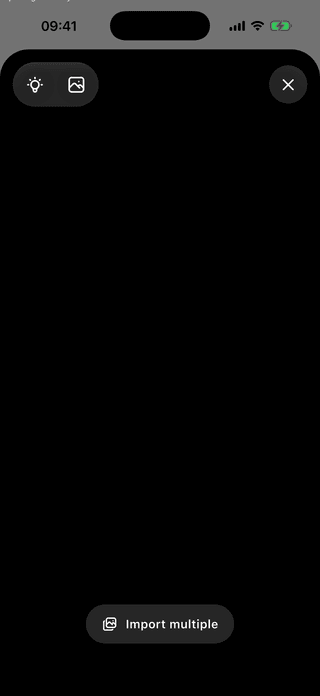
One pass over the printed code. - 02
Give it a name and a color
A card you can pick out one-handed is the difference between showing it and holding up the queue.
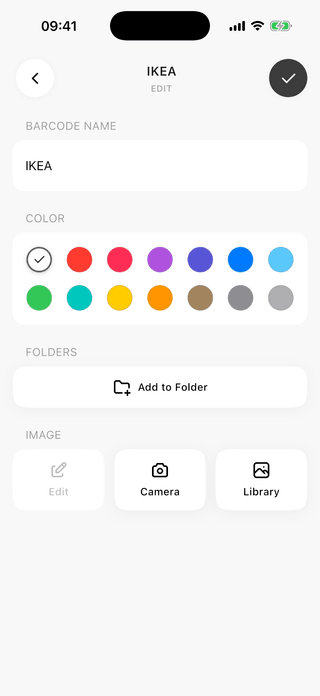
Color is what you steer by in a hurry. - 03
Drop it into a folder
Folders keep gym cards away from grocery cards. Folders, collection search and CSV export are part of ScanKeeper Premium.
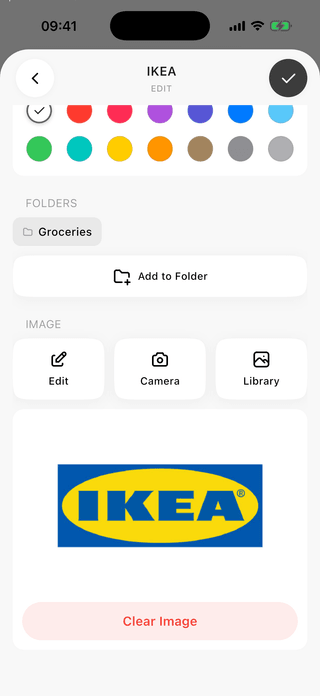
Grouped by where you actually use it. - 04
Find the expand and brightness buttons
An open card shows the code, the value with a copy button, and the format. Expand and brightness sit together.
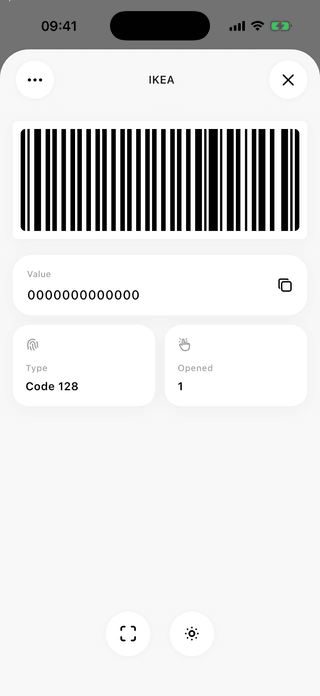
Your saved code is ready even without a connection. - 05
Hold it out at the counter
Expanded, the code turns sideways and fills the screen at full brightness. If it is refused twice, read the number out.
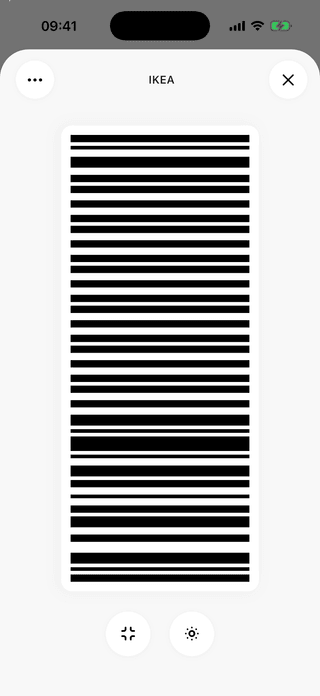
A larger target than the card was.



What changes once the cards live on the phone
The screen becomes the card
A code across the full width of a phone is a bigger target than the printed one.
Nothing to load in the queue
The card opens from what the phone already holds, so an aisle with one bar changes nothing.
One thing in your pocket
A dozen cards become a phone you were already carrying.
What to know before you start
Can every card in my wallet move to my phone?
If the card carries a barcode or QR code that a checkout scanner reads, yes. ScanKeeper supports QR Code, EAN-13, EAN-8, UPC-A, UPC-E, Code 128, Code 39, Code 93, ITF-14, Codabar, PDF417, Aztec, and Data Matrix. Cards that work only by NFC tap, or only inside a retailer's own app, are not barcodes and cannot be copied this way.
Why does one shop read my phone and the next refuses it?
They have different scanners. An imaging scanner photographs the code, so a screen is another picture to it. A laser scanner needs light bounced back, and a screen emits its own.
Should I turn the brightness all the way up?
Up, but not blindly. A screen brighter than the room needs throws glare of its own, and glare hides a code. Raise it until the bars look crisp.
The code will not scan. What now?
Wipe the screen and try again at a different angle. After that, use the digits: the number under the barcode is the membership number, and a cashier can key it in.
Does a cracked or dirty screen matter?
It can. Smudges and cracks break up the pattern a camera is decoding, the way a scuffed card does. Wiping fixes most of it.
Do my points and coupons come across with the barcode?
No. Points, purchase history and offers sit with the retailer's loyalty program, which knows you by the number the barcode carries.
Is this the same as Apple Wallet or Google Wallet?
No. Those hold passes a shop issued and signed, and ScanKeeper never creates one. It keeps the code you scanned yourself.
Should I throw the plastic away?
Not on the first day. Use the phone copy once at your own checkout with the card still in your pocket.